Face clear and sharp
Upload a clear face-on photo of you or a pet, large enough to read inside the gold frame. Soft, tiny, or cropped-out subjects make identity drift.
Viral template
A short Santa nice-list gold frame: your photo keeps that motion. Genjutsu AI holds the timing. Stills change the look.
About 10 seconds
On this page
The panel below is the homepage studio, already on this template. The sample is the Santa nice-list gold frame motion reference.
Reference video
Santa Nice List AI
10s · 760 credits · Seedance 2.5
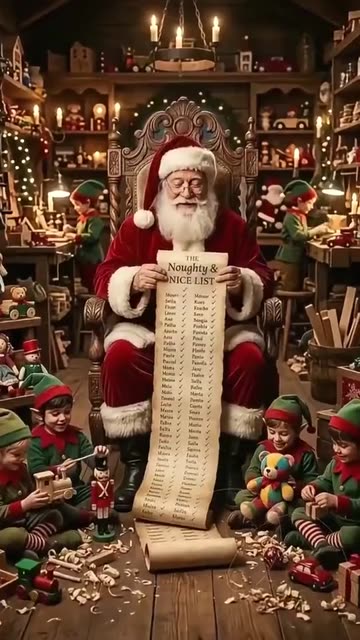
Santa Nice List AI is a Genjutsu AI photo-to-video template on genjutsuai.app. The reference clip is Santa unrolling his Naughty & Nice list in a candle-lit workshop, smiling to camera as gold sparkles open on a portrait in an ornate gold frame. Your still changes who is on screen; the sample keeps the staging.
Anyone who wants that workshop reveal with their own face, a friend’s face when that friend already agreed, or a pet they have permission for.
The sample holds Santa unrolling his Naughty & Nice list in a candle-lit workshop, smiling to camera as gold sparkles open on a portrait in an ornate gold frame. A photo changes who is on screen; it should not rewrite the staging.
Background
Santa Nice List is a short Christmas workshop gag: Santa sits on his throne, unrolls the Naughty & Nice list, gold sparkles fly, and the person (or pet) on the list appears in an ornate gold frame while he says they made the nice list.
The format spread as a November 2026 Christmas AI trend — one still in, a vertical clip with Santa’s voice and the sparkle reveal. Related hashtag chatter sat near 210.3 million views by early November 2026 as people dropped their own faces and pets into the frame.
This page is an independent Genjutsu AI photo-to-video remake of that nice-list reveal. Genjutsu AI is not affiliated with MakeViral, CapCut, or Higgsfield.
How it works
01
This page opens with the Santa Nice List AI clip already chosen. That file is the motion, the staging, and the timing.
02
A photo is optional. With no photo, the template still generates from the sample. Upload a clear face-on photo so the gold-frame reveal can read the face after the sparkles.
03
Press Generate. The button shows credits for this length and quality first. Keep source audio on by default unless you want a silent export.
Photo tips
The set, the timing, and the camera are already in the sample. The still only has to show the subject clearly.
Upload a clear face-on photo of you or a pet, large enough to read inside the gold frame. Soft, tiny, or cropped-out subjects make identity drift.
Ordinary daylight or clean indoor light is enough. Soft focus, heavy beauty filters, and extreme HDR make identity drift.
The sample already has the Santa nice-list gold frame staging. A photo with extra people or clutter makes the remap harder.
Use a photo of yourself, or of a friend who already agreed (or a child/pet you have permission for). Some templates ask you to skip children’s photos — follow that note when it appears.
Credits
The Generate button shows the credit price before you start. It follows the reference length and the quality you pick. A longer sample costs more, and 1080p costs more than 720p or 480p.
Sample length is the default. If a duration is missing, the studio measures the file, then shows credits. Your own reference video is priced from that file. Clips that are too long are rejected before a job starts.
Leave mute off for a soundtrack from the model, or check mute and add music later. Mute does not change the camera or the timing. A failed job returns the credits.
Use cases
The motion and the timing stay. The look changes.
Upload a clear face-on photo and leave the sample. You get a short workshop clip where the gold frame opens on that portrait.
One clip per subject who already said yes (or whose owner/guardian said yes). Separate photos keep each identity clean.
Run two photos through the same sample when you want to see which still holds the beat. Staging and timing stay fixed.
Generate with no photo to watch the motion, or to check credits and length. Add a photo on the next run.
Examples
The player at the top is the Santa Nice List AI motion reference: Santa reading the list in a candle-lit workshop, then gold sparkles opening on a framed portrait. That timing is what Genjutsu AI keeps when a photo changes the look.
Other published templates use the same photo-to-video studio. Each one keeps its own sample motion, and you can open it to generate on that template’s page.
A Genjutsu AI photo-to-video template of Santa unrolling his Naughty & Nice list in a candle-lit workshop, smiling to camera as gold sparkles open on a portrait in an ornate gold frame. Upload a photo to change who is on screen; keep the sample for motion and timing.
No. The clip generates from the template alone. Upload a photo when you want the look to change — with permission.
The aim is to keep the sample’s Santa unrolling his Naughty & Nice list in a candle-lit workshop, smiling to camera as gold sparkles open on a portrait in an ornate gold frame. Extreme crops or busy group shots make remapping harder.
Look at the Generate button. The shipped sample is about ~10s. The price follows that length and the quality you pick.
Yes. Source audio stays on uploads by default for this template. Mute in the studio if you want a silent export.
A clear face-on photo, large and sharp enough for a gold-frame portrait. Skip group shots, masks, and tiny distant faces.