Face clear and sharp
Upload a clear face-on photo of you (or a pet you have permission for), sharp enough to read as the boss behind the desk. Soft, tiny, or cropped-out faces make identity drift.
Viral template
A short counting-money boss flip: your photo keeps that motion. Genjutsu AI holds the timing. Stills change the look.
About 10 seconds
On this page
The panel below is the homepage studio, already on this template. The sample is the counting-money boss flip motion reference.
Reference video
Counting Money Meme AI
10s · 840 credits · Seedance 2.5
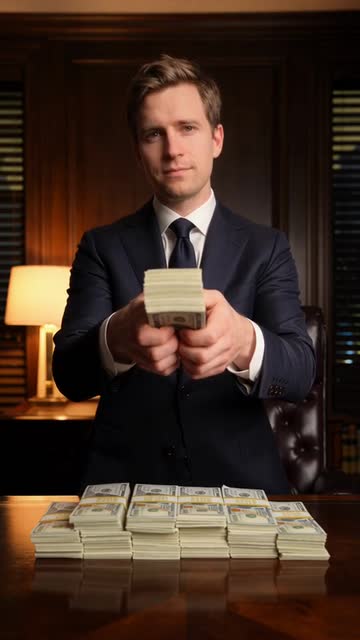
Counting Money Meme AI is a Genjutsu AI photo-to-video template on genjutsuai.app. The reference clip is sitting as a sharp-suited boss behind a desk piled with banded cash, flipping through a thick stack, then fanning the bills at the camera. Your still changes who is on screen; the sample keeps the staging.
Anyone who wants that counting-money boss beat with their own face, a friend’s face when that friend already agreed, or a pet they have permission for.
The sample holds sitting as a sharp-suited boss behind a desk piled with banded cash, flipping through a thick stack, then fanning the bills at the camera. A photo changes who is on screen; it should not rewrite the staging.
Background
Counting money has been a reaction meme for years: a boss riffling a thick stack, a “just got paid” GIF, even cartoon cats fanning bills whenever someone wins a bet or plays rich. The pose is simple — desk, suit, a brick of cash, and a look straight at the lens.
AI versions drop a still into that office and run the flip-then-fan beat. MakeViral’s module lists Human and pet-boss takes against roughly 173.9 million related views by early November 2026, with recent TikTok examples circulating in late 2026.
This page is an independent Genjutsu AI photo-to-video remake of that counting-money boss flip. Genjutsu AI is not affiliated with MakeViral, CapCut, or Higgsfield.
How it works
01
This page opens with the Counting Money Meme AI clip already chosen. That file is the motion, the staging, and the timing.
02
A photo is optional. With no photo, the template still generates from the sample. Upload a clear face-on photo so the suited boss behind the cash desk can keep the identity while the stack flips.
03
Press Generate. The button shows credits for this length and quality first. Keep source audio on by default unless you want a silent export.
Photo tips
The set, the timing, and the camera are already in the sample. The still only has to show the subject clearly.
Upload a clear face-on photo of you (or a pet you have permission for), sharp enough to read as the boss behind the desk. Soft, tiny, or cropped-out faces make identity drift.
Ordinary daylight or clean indoor light is enough. Soft focus, heavy beauty filters, and extreme HDR make identity drift.
The sample already has the counting-money boss flip staging. A photo with extra people or clutter makes the remap harder.
Use a photo of yourself, or of a friend who already agreed (or a child/pet you have permission for).
Credits
The Generate button shows the credit price before you start. It follows the reference length and the quality you pick. A longer sample costs more, and 1080p costs more than 720p or 480p.
Sample length is the default. If a duration is missing, the studio measures the file, then shows credits. Your own reference video is priced from that file. Clips that are too long are rejected before a job starts.
Leave mute off for a soundtrack from the model, or check mute and add music later. Mute does not change the camera or the timing. A failed job returns the credits.
Use cases
The motion and the timing stay. The look changes.
Upload a clear photo and leave the sample. You get a short office clip of the suited boss flipping a stack and fanning it at the camera.
One clip per subject who already said yes (or whose owner/guardian said yes). Separate photos keep each identity clean.
Run two photos through the same sample when you want to see which still holds the beat. Staging and timing stay fixed.
Generate with no photo to watch the motion, or to check credits and length. Add a photo on the next run.
Examples
The player at the top is the Counting Money Meme AI motion reference: a suited boss behind a cash-stacked desk, flipping a brick of bills and fanning them at the camera. That timing is what Genjutsu AI keeps when a photo changes the look.
Other published templates use the same photo-to-video studio. Each one keeps its own sample motion, and you can open it to generate on that template’s page.
A Genjutsu AI photo-to-video template of sitting as a sharp-suited boss behind a desk piled with banded cash, flipping through a thick stack, then fanning the bills at the camera. Upload a photo to change who is on screen; keep the sample for motion and timing.
No. The clip generates from the template alone. Upload a photo when you want the look to change — with permission.
The aim is to keep the sample’s sitting as a sharp-suited boss behind a desk piled with banded cash, flipping through a thick stack, then fanning the bills at the camera. Extreme crops or busy group shots make remapping harder.
Look at the Generate button. The shipped sample is about ~10s. The price follows that length and the quality you pick.
Yes. Source audio stays on uploads by default for this template. Mute in the studio if you want a silent export.
A clear face-on photo, large and sharp. Skip group shots, masks, and tiny distant faces.